
If your Google Home Mini acts slow, drops Wi‑Fi, or ignores commands, a factory reset can give it a clean slate. I have reset dozens of Minis during network tune‑ups and smart home installs. In this guide, I will show you how to factory reset Google Home Mini in a safe, simple way. I will also share pro tips, mistakes to avoid, and what to do after the reset so you get the best results. Let’s make this quick and stress‑free.
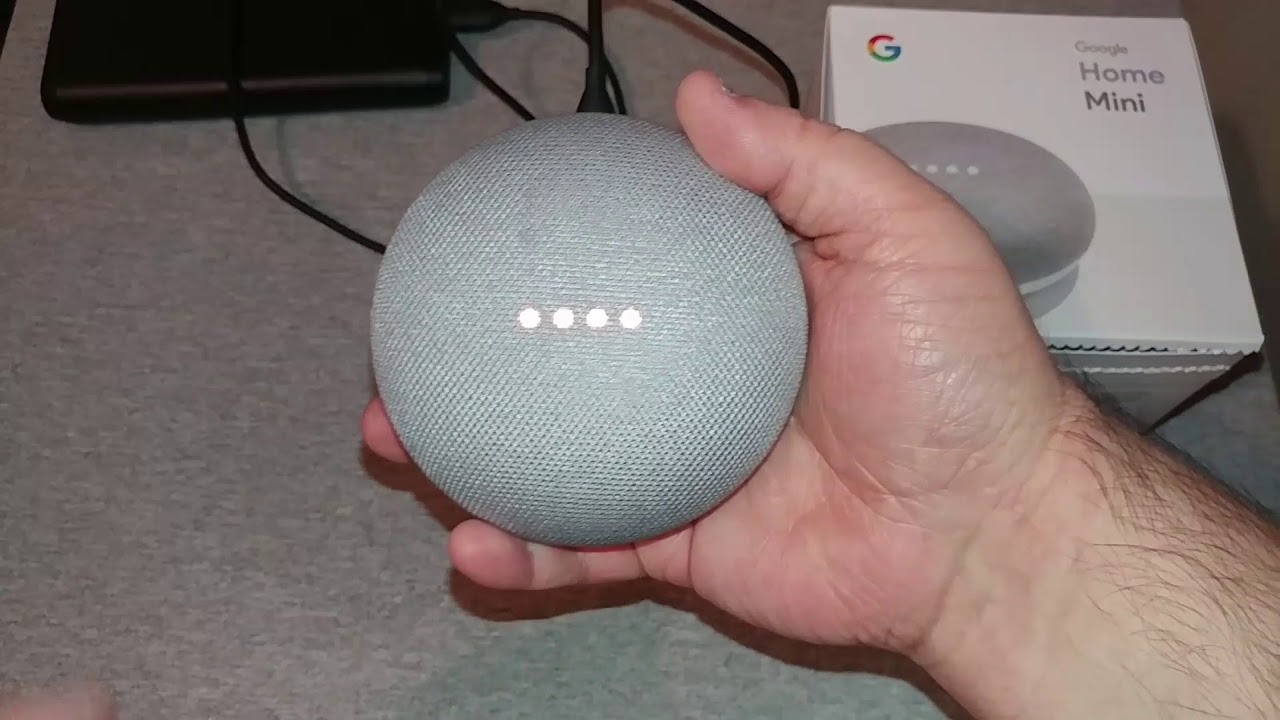
Source: www.youtube.com
What A Factory Reset Does
A factory reset wipes the device. It returns your Mini to the state it was in when you first unboxed it. This clears your Wi‑Fi, Google account, paired Bluetooth devices, and custom settings.
Based on Google’s support guidance and hands‑on work, here is what to expect:
- Your linked accounts are removed. You must link them again after.
- Routines, default speaker, and voice match are erased on the device.
- Cloud data stays in your Google account. The reset only clears the device.
- You can set it up again with the Google Home app in minutes.
When I help clients move homes, I always reset before packing. It protects privacy and avoids odd bugs later.
:max_bytes(150000):strip_icc()/GoogleHomemini_resetbutton-5b7df5f3c9e77c0024a87feb.jpg)
Source: www.lifewire.com
Before You Reset: Quick Checks And Backups
Try these quick steps first. They fix many common issues without a full reset.
- Power cycle the Mini. Unplug it for 20 seconds. Plug it back in.
- Restart your router. Many “Mini problems” are Wi‑Fi hiccups.
- Check the Google Home app for updates. Update firmware if prompted.
- Move the Mini closer to your router. Test again.
If you do reset, prepare:
- Note your Wi‑Fi name and password. You need them during setup.
- If you use routines, take screenshots in the Google Home app for easy rebuild.
- If you plan to sell or give away the Mini, unlink it from your account in the app after the reset.

Source: www.wikihow.com
How To Factory Reset Google Home Mini
Method 1: Use The Physical Reset Button
This is the fastest and most reliable way. It works even if the app will not connect.
For Google Home Mini, 1st gen:
- Keep the Mini powered on.
- Flip the mic switch on the side to off. The LEDs should glow orange.
- Press and hold the small round reset button under the power cord on the bottom of the Mini.
- Hold for about 15 seconds. You will hear the device confirm the reset is starting.
- Keep holding until you hear the final confirmation tone. Then release.
For Nest Mini, 2nd gen:
- Keep the Mini powered on.
- Toggle the mic switch to off. The LEDs on top will glow orange.
- Press and hold the center area on top of the speaker, right where the lights are.
- Hold for about 15 seconds until you hear the reset confirmation.
- Release after the tone. The device will reboot.
Pro tip from the field:
- If nothing happens, your press may be too light. Press firmly and keep the timer slow in your head. Count one one‑thousand, two one‑thousand, up to fifteen.

Source: www.youtube.com
Reset Using The Google Home App
You can also reset from the app if the device is online and responsive.
On Android or iOS:
- Open the Google Home app and pick your Mini.
- Tap the gear icon for settings.
- Tap Remove device.
- Tap Factory reset and confirm.
Notes:
- If the app cannot reach the Mini, use the physical button method above.
- On shared homes, only managers can reset devices linked to the home.
After The Reset: Set Up And Test
After the reset, the Mini will reboot and the lights will spin. It is ready to set up when you hear the prompt.
Set up steps:
- Open the Google Home app.
- Tap the plus icon, then Set up device, then New device.
- Follow the prompts to connect to Wi‑Fi and sign in.
- Rebuild routines, add music services, and set default speaker if you use one.
Run these quick tests:
- Say Hey Google, what time is it to check the mic and voice match.
- Play a song to test Spotify, YouTube Music, or your service of choice.
- Control a smart light to confirm home control works.
Pro tips:
- Place the Mini away from thick walls and microwaves. That helps Wi‑Fi.
- Turn on Voice Match again for better results with personal info.
- If you use a mesh router, connect on a 2.4 GHz band for best range.
Troubleshooting Reset Problems
If the reset does not start:
- Check power. Try a different outlet or adapter.
- Hold the button longer. Many users release at 8 to 10 seconds by mistake.
- For the 2nd gen, press the top center, not the edge.
If the Mini will not set up after reset:
- Restart your phone and router.
- Forget the old Wi‑Fi network on your phone during setup.
- Move within 10 feet of the router.
- Turn off VPNs on your phone.
- Use another phone to test if your device profile is the issue.
If the mic will not respond:
- Slide the mic switch on and off once.
- Check app permissions for the mic on your phone during setup.
In rare cases, hardware fails. If your Mini will not power on or lights stay stuck, contact Google support for repair or replacement options.
Security, Privacy, And When To Reset
A reset is smart when you:
- Sell or gift the device.
- Move to a new home or Wi‑Fi network and the Mini misbehaves.
- See persistent bugs after updates.
Privacy notes based on standard guidance:
- The reset removes local data. Linked cloud data remains in your account.
- If you want to manage voice and audio activity, use your Google Account settings.
- Always remove the device from your Google Home if you give it away.
From experience, I reset devices at the end of any major network change. It prevents old Wi‑Fi records and stale caches from causing odd issues later.
Frequently Asked Questions of how to factory reset google home mini
Q. Does a factory reset delete everything?
It clears local settings, Wi‑Fi, and links on the device. Your Google Account data stays in the cloud. You will set up the device again.
Q. How long does a factory reset take?
The reset sequence is about 15 seconds. Setup after that takes 2 to 5 minutes, depending on Wi‑Fi and updates.
Q. What if my Mini does not show a reset button?
You likely have the Nest Mini, 2nd gen. Use the mic off switch, then press and hold the top center area for about 15 seconds.
Q. Can I reset without the Google Home app?
Yes. Use the physical button method. It works even if the app cannot connect.
Q. Will a reset fix Wi‑Fi issues?
Often, yes. It clears bad caches and network links. If issues remain, check your router, channel settings, and signal strength.
Q. Is there a way to undo a reset?
No. A reset is final. You can set the device up again with the same account and restore your routines by hand.
Q. Why does my Mini keep asking to be set up after a reset?
It has not finished the setup in the app. Open Google Home, add the device, and complete Wi‑Fi and account linking.
Conclusion
A clean factory reset can revive a sluggish Google Home Mini and protect your privacy when you move or pass the device on. Use the physical button for a sure reset, then set it up fresh in the Google Home app. Keep your Wi‑Fi details handy, press and hold long enough, and test your routines and music after. You will be up and running in minutes.
Try the steps now and let me know how it goes. If you found this guide helpful, subscribe for more smart home tips or leave a comment with your questions.
Watch This Video on how to factory reset google home mini
>>> Get More Review Here: How Can You Protect Your Home Computer 2025 <<<